Author: admin

  • SuperEZ 1.3 – DevLog

    In this release I was able to make significant progress, though there were things along the way that I wasn’t expecting, and they took so much time to resolve. The main thing was to be able to load geometry from file, not hardcoding it, and then be able to apply some kind of coloring for the visualisation purposes. Also, I’ve re-used my Flexible Vertex Buffers which allows flexibility when it comes to managing Vertex Buffers. Another major planned thing was Input Handling, so at the very least I would be able to rotate my camera aound the scen using mouse. The two major unplanned things were implementing Resource Handles and the rework of the camera system. The first one was easy, but significantly improve code readibility and type safety. The latter though… that’s like the other story 🙂 Spoiler alert, eventually with this rework I was able to achieve a nice result.

    Features

    Load Geometry from File

    This was the biggest thing I wanted to implement this release. This feature would give me the “biggest bang for the buck”. There were many libraries to consider, however, I’ve decided to go with my own solution. Some time ago I’ve decided that I wanted to learn more about lodaing game assets from hard drive, things like geometry or images. I’ve even went as far as implementing my own PNG decoder, which took me a while, but was an amazing journey and very, very rewarding. This library is not very good, there were some decisions I’ve made which I didn’t know back then were not great, but it works and for whatever reason, I really enjoyed doing things from scratch.

    The library is rather easy to use, basically you create your own Asset Manager and then you point a file you want to load and the decoder you want to use, which is optional, the decoder can be picked automatically based on file extension. Then, the library will load a file from disc to local memory and decode if necessary. The decoding results in having a common representation of given asset. In other words, no matter if you load PNG or BMP file, once loaded, they will have the same format. Once that is done, you get the access to the raw memory and you can do whatever you want with the asset, like uploading it to the GPU.

    In this release I’ve only used the geometry part to load the Wavefront files. There are some requirements though, like speciffic axis setup, triangulation is required and the separate objects needs to be grouped together, but that’s easy to handle.

    So the flow is, first I load the whole Wavefront file to the memory. This file contains separate objects as group. For each such object, I create vertex buffer that contains the position and also I generate some semi-random coloring, just so that we can see some nice things on the screen. During the Vertex Buffer creation, I immediatley uplad it to the GPU using the Upload Heap. Note that this is not the way commercial engines work, usually uploading resources to the GPU is a complex system that can support things like decompression or streaming them on demand. Moreover, using Upload Buffers in such way can lead to performance issues. However, this is very easy to use and understand, that at this point this is the most important thing for this implementation.
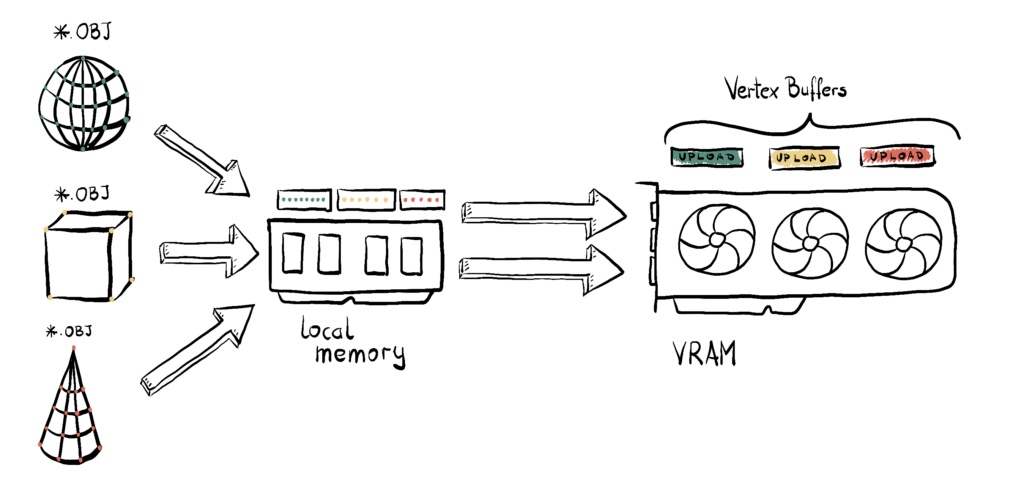
    Once we have that, I create the abstract Mesh object, which creates Vertex Buffer Views necessary for binding and cointains indices to the Vertex Buffers. This introduces a kind of abstraction layer, but is also really easy to use and understand.

    Flexible Vertex Buffers

    Once my geometry is loaded into local memory, the next step is to upload it to the GPU. Now, this idea had been simmering in the back of my mind for a while: what’s the best way to do this?

    Most tutorials online show a single struct that defines a vertex—something like position, normal, texture coordinates, etc.—and then a vertex buffer is just an array of these structures. Simple. Clean. But…

    As I built previous engines and the complexity grew, two big pain points started to emerge:

    1. Not all render passes need the full vertex layout. For example, a G-Buffer pass might need position, normal, tangent, UVs, and more—but a Shadow Map pass only needs position. So a one-size-fits-all vertex layout becomes wasteful and restrictive.
    2. Vertex layout bloating over time. Every new feature—like normal mapping, per-vertex AO, skinning, or instance IDs—adds more elements to the vertex struct. Even if a pass doesn’t need them, they’re still there, taking up space and bandwidth.

    These two issues led me to rethink the design and build what I now call the Flexible Vertex Buffer (FVB) system. (Yeah, I’m a little proud of the name.)

    Here’s the general idea – instead of having one big Vertex Buffer, where each vertex contains all the elements required by all the Render Passes, you create separate Vertex Buffer for each element – one for position, one for color, one for texture coordinate, and so on. Then, each Render Pass will pick and choose which element it needs and bid corresponding buffer to the rendering pipeline.
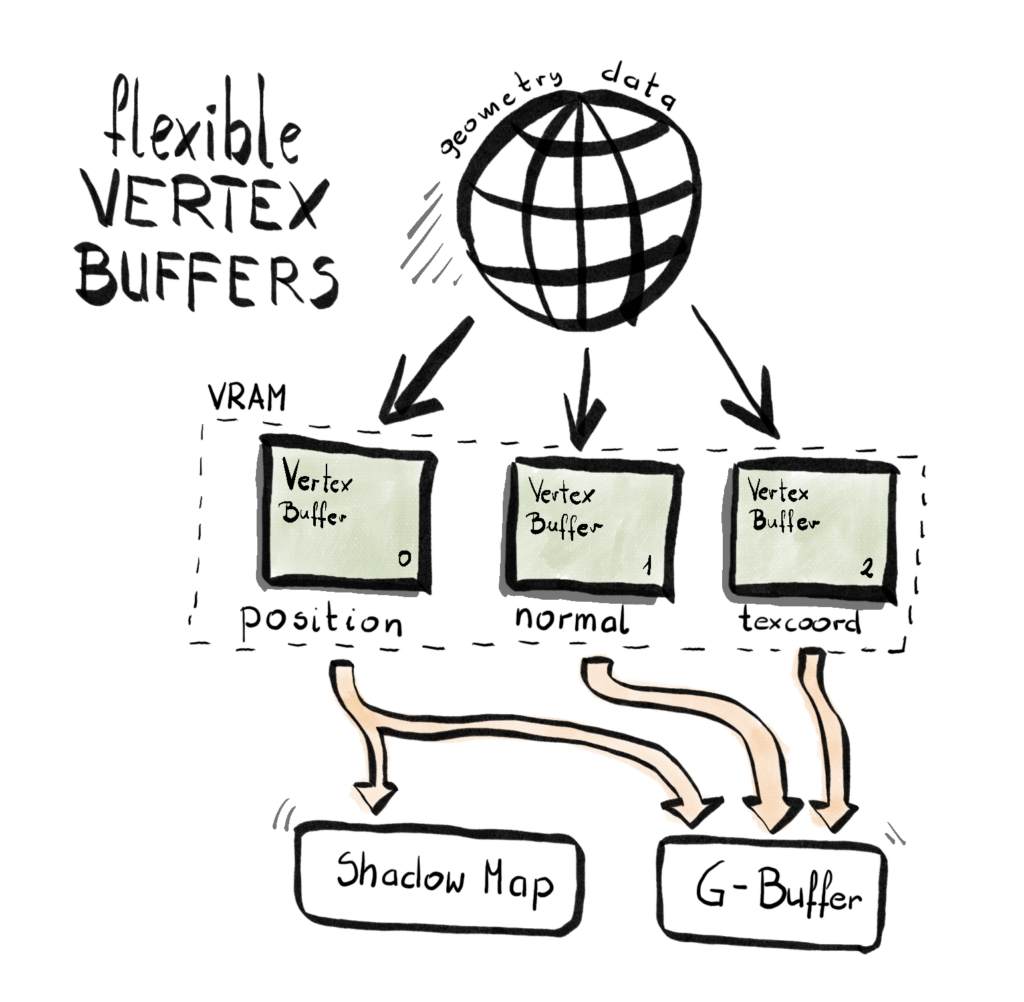
    Since each pass might use a different set of vertex elements, I needed a flexible way to build input layouts on demand. Enter variadic templates:

    class InputLayout
    {
    public:
    	InputLayout();
    	~InputLayout();
    	template <typename T, typename... Types>
    	void AppendElementT(T firstArg, Types... restArgs)
    	{
    		AppendElement(firstArg);
    		AppendElementT(restArgs...);
    	}
    	template<typename T>
    	void AppendElementT(T firstArg)
    	{
    		AppendElement(firstArg);
    	}
    	D3D12_INPUT_LAYOUT_DESC GetInputLayoutDesc();
    private:
    	void AppendElement(VertexStream vertexStream);
    	std::vector<D3D12_INPUT_ELEMENT_DESC> inputElementsList;
    };

    Each render pass can now configure its input layout like this:

    void TestPass::ConfigurePipelineState()
    {
    	// Pre-AutomaticPrepare Procedure
    	inputLayout = renderContext.CreateInputLayout();
    	renderContext.GetInputLayout(inputLayout)->AppendElementT(
            VertexStream::Position, VertexStream::Color);
    }

    During rendering, the appropriate vertex buffers are bound based on what the shader expects:

    void RenderContext::BindGeometry(HCommandList commandList, HMesh mesh)
    {
    	commandLists[commandList.Index()]->GetCommandList()->
            IASetPrimitiveTopology(D3D_PRIMITIVE_TOPOLOGY_TRIANGLELIST);
    	D3D12_VERTEX_BUFFER_VIEW vbvPosition[] =
    	{
    		meshes[mesh.Index()]->GetPositionVertexBufferView(),
    		meshes[mesh.Index()]->GetColorVertexBufferView()
    	};
    	commandLists[commandList.Index()]->GetCommandList()->
            IASetVertexBuffers(0, 2, vbvPosition);
    }

    Right now, all render passes (okay, there’s one) use the full set of data, so we only bind everything. But the plan is to support pass-specific binding combinations soon.

    At this point you might think – do I need to somewhat change my shaders to accomodate for this solution? Well, here’s the beauty of it: the shader code doesn’t change. You still define your inputs like this:

    struct PSInput
    {
        float4 position : SV_POSITION;
        float4 color : COLOR;
    };
    
    PSInput VSMain(float4 position : POSITION, float4 color : COLOR)
    //PSInput VSMain(float4 position : POSITION)
    {
        PSInput result;
    
        result.position = mul(position, viewProjection);
        result.color = color;
    
        return result;
    }

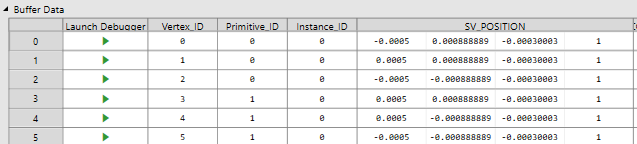
    This is what you might expect out of the PIX capture.
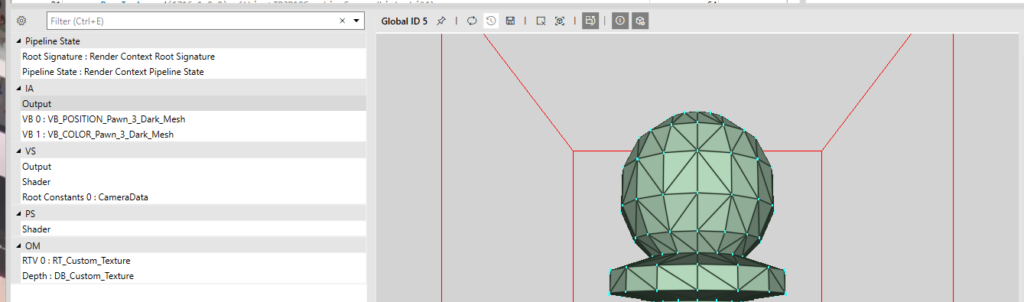
    And that it is, I think for the purposes of this engine, it gives us lots of felxibility, it improves the code and capture readibility.

    Note on Performance

    This architecture is known as a non-interleaved layout—also called a “structure of arrays” (SoA) approach. While it offers a lot of flexibility and modularity, especially when different render passes require different vertex data, there may be a performance tradeoff.

    GPUs are optimized for interleaved vertex buffers (“array of structures”), where all attributes for a single vertex are stored contiguously. That layout helps with memory caching and reduces over-fetch. In contrast, when using separate buffers for each attribute, the GPU might perform more memory fetches, possibly leading to cache misses or memory bandwidth waste—especially on mobile or bandwidth-constrained hardware.

    Modern game engines implement a hybrid approach, some parts that are quite common are interleaved, while other less common parts are non-interleaved. I’ll be profiling this setup to measure actual impact. If it turns out to be a problem, we might implement a hybrid approach later on. But for now, the clarity and extensibility of FVB feels like the right move.

    Resource Handles

    Some time ago, I settled on the nature of my RenderContext. I decided to split the system into two general levels of abstraction: low-level and high-level.

    The low-level side is basically a thin wrapper around DirectX 12 — things like ID3D12Resource, vertex buffers, heaps, etc. This part is pretty raw and is exposed directly to the graphics API.

    The high-level side is more generic and abstract. It includes things like RenderTarget, Mesh, and Texture. These are mostly API-agnostic, and they allow for more architectural and design-driven thinking. When you work on rendering at a high level, you want to say: “Create a RenderPass, attach a RenderTarget, set up a Pipeline State”, not “Allocate heap memory and manually set up a resource descriptor.”

    I’ve grown to really like this design. It feels clean and separates concerns well. But there was a big challenge that emerged as the engine evolved: how do you reference low-level things from high-level structures?

    The Naive Start

    At first, I kept it simple — too simple. I stored my low-level resources in std::vectors, and used raw indices to refer to them.

    std::vector<VertexBuffer*> vertexBuffers;
    
    auto index = vertexBuffers.size();
    vertexBuffers.push_back(new VertexBuffer(...));

    Then in my high-level structures, I’d store that index — just a size_t, or even worse, a uint32_t. And to be fair… it worked. For a while.

    The good part: I avoided raw pointers to DX12 resources in high-level objects, keeping responsibilities clean.
    The bad part: the code quickly became unreadable, error-prone, and frankly ugly. I was passing unsigned integers all over the place. It wasn’t clear what any of them meant. Was 5 a texture index? A vertex buffer? A pipeline state? Who knew? More importantly, the compiler didn’t care. I had completely lost type safety.

    Enter: Resource Handles

    So, I stopped overthinking and implemented a simple, generic handle system. Here’s the full code:

    template<typename T>
    class Handle {
    public:
        using IndexType = size_t;
    
        Handle() : m_index(InvalidIndex()) {}
        explicit Handle(IndexType index) : m_index(index) {}
    
        bool IsValid() const { return m_index != InvalidIndex(); }
        IndexType Index() const { return m_index; }
    
        bool operator==(const Handle& other) const { return m_index == other.m_index; }
        bool operator!=(const Handle& other) const { return !(*this == other); }
    
        static constexpr IndexType InvalidIndex() { return static_cast<IndexType>(-1); }
    
    private:
        IndexType m_index;
    };
    
    // Aliases for different resource types
    using HTexture       = Handle<Texture>;
    using HVertexBuffer  = Handle<VertexBuffer>;
    using HRenderTarget  = Handle<RenderTarget>;
    

    So what changed?

    Yes — under the hood, it’s still just an index into a vector. But now, each handle is strongly typed. A Handle<Texture> can’t be passed where a Handle<VertexBuffer> is expected. You get both type safety and intent clarity. And it looks cleaner too:

    // Create the resource and return a handle
    HVertexBuffer RenderContext::CreateVertexBuffer(...) {
        size_t index = vertexBuffers.size();
        vertexBuffers.push_back(new VertexBuffer(...));
        return HVertexBuffer(index);
    }
    
    // Use the handle in high-level structures
    auto vbHandle = renderContext.CreateVertexBuffer(...);
    renderContext.CreateMesh(vbHandle, ...);
    

    No more guessing what that 5 means. The type tells you it’s a vertex buffer handle — not a texture, not a pipeline state. The only thing I’m not thrilled about is the H prefix in HTexture, HVertexBuffer, etc. I really don’t like prefixes in general — they tend to clutter things. I considered going with TextureHandle, RenderTargetHandle, etc., but they felt a bit too verbose. I might revisit the naming later, or maybe wrap them in a namespace. For now, HTexture does the job, and doesn’t offend my eyes too much.

    This was one of those cases where a small utility class ended up improving the architecture significantly. Type-safe, readable, and no more mystery integers flying around. The engine’s growing, and so are the lessons.

    Drawing Multiple Meshes

    Now, since I have all the geometry data I need in place, the next thing to do was to provide it to the Render Passes, so that they can actually perform the drawing. Since all the Mesh instances are being handled within the Render Context, the only thing to do was to provide a way for a Render Pass to provide the handle to given Mesh (which could be a single index) and we’re good to go.

    // In Render Context...
    HVertexBuffer CreateVertexBuffer(
        UINT numOfVertices,
        UINT numOfFloatsPerVertex,
        FLOAT* meshData,
        const CHAR* name
    );
    void CreateMesh(
        HVertexBuffer vbIndexPosition,
        HVertexBuffer vbIndexColor,
        const CHAR* name
    );
    void BindGeometry(
        HCommandList commandList,
        HMesh mesh
    );
    void DrawMesh(
        HCommandList commandList,
        HMesh mesh
    );
    UINT GetNumOfMeshes();
    
    // ...in the Engine...
    for (const auto& meshName : meshNames)
    {
        auto vbIndexPositionAndColor = renderContext.CreateVertexBuffer(...);
        renderContext.CreateMesh(...);
    }
    
    // ...and then in Render Pass
    for (int i = 0; i < renderContext.GetNumOfMeshes(); i++)
    {
    	renderContext.BindGeometry(commandList, HMesh(i));
    	renderContext.DrawMesh(commandList, HMesh(i));
    }

    I’ve kept the interface clean and simple so far, you simply point to a mesh you want to draw, and then Render Context takes care of the rest. Now this solution will probably need to be changed in the future, because it has too many design flaws, but for now, since we only render all meshes or nothing, it should be enough.

    Input Handling

    Another big feature introduced in this release was Input Handling. Fortunately, I had most of the code ready from previous iterations. We only supporte one technology – the Raw Input for both keyboard and mouse support. It handles events provided by Windows via the Windows Procedure function. To future prof this code (for example to support game pads down the line), I’ve decided to use the Observer design pattern.

    First, let’s have a high level overview of the design, and then we will cover the details of the implementation a little bit more. As with many Observer patterns, we have two key players – we have a Subject and and Observer (in some cases refered to as Listener). The first one will register Observers and will provide all the information to them. In our case, the Subject will be the winMessageSubject and will be plugged in the Window Procedure.

    Subject<WinMessageEvent> winMessageSubject;
    RawInput rawInput;
    // ...
    void Engine::Initialize()
    {
    	rawInput.Initialize();
    	winMessageSubject.Subscribe(&rawInput);
        // ...
    }

    And then, later in the code, in the Window Procedure, we read.

    LRESULT CALLBACK WindowProcedure(HWND hwnd, UINT uMsg, WPARAM wParam, LPARAM lParam)
    {
    	WinMessageEvent winMessageEvent(hwnd, uMsg, wParam, lParam);
    	winMessageSubject.Notify(winMessageEvent);
    	// ...
    }

    I’ve built the low-level input handling via the Windows Raw Input API to achieve more precise and efficient processing of mouse and keyboard input. The RawInput class registers both devices during initialization, ensuring we receive raw data directly from the hardware. When input events come in, the class distinguishes between mouse and keyboard data and routes each to dedicated handlers. Mouse handling tracks movement deltas, button presses/releases, and wheel scrolling using a structured flag system, while keyboard input maintains the current and previous state of each key, enabling detection of discrete key transitions (like a key being pressed this frame but not the last). After each frame, deltas and transient input states are reset to ensure clean state tracking for the next frame. This setup gives us fine-grained control over input events, which is essential for real-time applications like games or simulators. Here’s how it looks like in action.

    const bool isXAxisRotation =
        rawInput.GetMouseXDelta() != 0 && rawInput.IsMiddleButtonDown();
    const bool isYAxisRotation =
        rawInput.GetMouseYDelta() != 0 && rawInput.IsMiddleButtonDown();
    if (isXAxisRotation || isYAxisRotation)
    {
    	arcballCamera->Rotate(
            0.1f * rawInput.GetMouseYDelta(),
           -0.1f * rawInput.GetMouseXDelta(), 0.0f
        );
    }

    In this case we’re checking if the mouse moved and if the middle mouse button were clicked at the same time. If so, we query the mose delta in both x- and y-axis, and we apply this to the camera rotation.

    Camera System Rework

    There is this piece of wisdom that I honestly believe is true to the bone: “Everyone has a plan until they get punched in the mouth” by Mike Tyson. This is so very true. I did have a plan for the release, the last thing I wanted to do was to take a look at possibility to quickly switch between Orthographic and Perspective camera. It turned out, there were some deep flaws in the overall design to the system, so it was clear that I need to rework the entire thing. Everything started when I wanted to implement a feature, where you would be allow to switch between Orthographic and Prespective Camera by click of a button. Morover, I really wanted that when the switch happens, the rotation, zoom, and things like that would match.

    Previously, I had separate class for Orthographic and Perspective camera, meaning that I had to have two different objects for each type of the camera. The main point of this rework was to merge these two things into one class.

    Another big design decision was to make the rotation a part of that Camera class. Previously, this was in the hand of the Camera Controler. Additionally, I did the ground work for a big change from using Euler angles for rotation in favor of the spherical cooridantes, but more on that later.

    Orbit Camera

    The very last thing I did was related to the Orbit Camera. I had it somewhat working, but after a little bit more testing, it turned out that it had some significant flaws and basically wasn’t working as intended. If I had to be honest, I did set up a little more broad goal, to achieve this kind of Blender-like camera, which is an orbital camera with zoom, ability to switch between orthographic and perspective camera, and easily set camera to either front, side or top by a press of a button. Some of the issues, like not aliging rotation between orthographic and perspective cameras, were solved with the Camera System Rework, the biggest issue was with the Orbit camera (which I previously called Arcball, but it wasn’t a representative name). There were many symptoms of that camera not working correctly:

    • If I rotate 90 degrees right (or left), I wasn’t able to rotate up and down anymore
    • If I rotate 180 degrees right (or left), I was able to rotate up and down, but in reversed order
    • If I rotate 270 degrees right (or left), I wasn’t able to rotate up and down anymore as well
    • If I rotate up (or down), the rotation is not continuing, but rather it flips around and suddenly goes back, even though it was supposed to go up

    I did start to research this problem a little bit, and it turned out it is a pretty common pitfall in this situation, and it has to do with Euler angles – it is called Gimbal Lock.

    Let’s start with explaining what Euler angles are, because this and rotation matrices are key to understand what is going on.

    Euler Angles Explained

    Euler angles are a way to describe a 3D orientation using three separate rotations around the principal axes: typically X (pitch), Y (yaw), and Z (roll). The rotations are applied in a specific order, and each one changes the coordinate system for the next. This method is intuitive for humans and often used in UI sliders or keyframe animation systems.

    For example:

    • Yaw rotates around the vertical axis (left/right),
    • Pitch rotates around the lateral axis (up/down),
    • Roll rotates around the longitudinal axis (twist/tilt).

    However, Euler angles come with limitations—especially when trying to represent smooth and continuous rotations in 3D space. Now that we undersand this, let’s try to put a magnifying glass on all the things that were happening.

    Gimbal Lock Explained

    Gimbal lock occurs when two of the three rotational axes become aligned, effectively losing one degree of freedom. In practice, this means you can no longer rotate independently along all axes, and your camera starts behaving erratically.

    In the context of your orbit camera:

    • When the pitch approaches ±90 degrees, the yaw and roll axes begin to align.
    • This causes the system to lose the ability to distinguish between certain directions, leading to the odd behavior you observed (unable to rotate, reversing controls, or snapping back).

    This is a fundamental limitation of using Euler angles for 3D rotations in certain configurations. Finally, let’s take a look at the spherical solution and how it started to work eventually.

    Spherical Coordinates and the Solution

    To fix this, I transitioned from Euler angles to spherical coordinates. In spherical coordinates, a point in space is defined by:

    • Radius r (distance from the origin),
    • Azimuth θ (angle around the vertical axis — like yaw),
    • Elevation φ (angle up/down — like pitch).

    This model maps naturally to orbit-style camera behavior, where:

    • The target point is the origin.
    • The camera moves on the surface of an imaginary sphere.
    • You never run into gimbal lock because you are not composing axis rotations—you’re directly controlling angles on a sphere.

    The camera’s position can be calculated as:

    x = r * cos(φ) * sin(θ)
    y = r * sin(φ)
    z = r * cos(φ) * cos(θ)

    Then, the camera simply looks at the origin. This approach gives you:

    • Seamless orbiting,
    • Smooth zoom (by adjusting r),
    • Consistent control without weird flipping or reversal.

    With this implementation, everything started to behave correctly. The orbit camera became predictable, intuitive, and aligned with my original vision — giving me a solid foundation for the Blender-like camera system I wanted.

    Summary

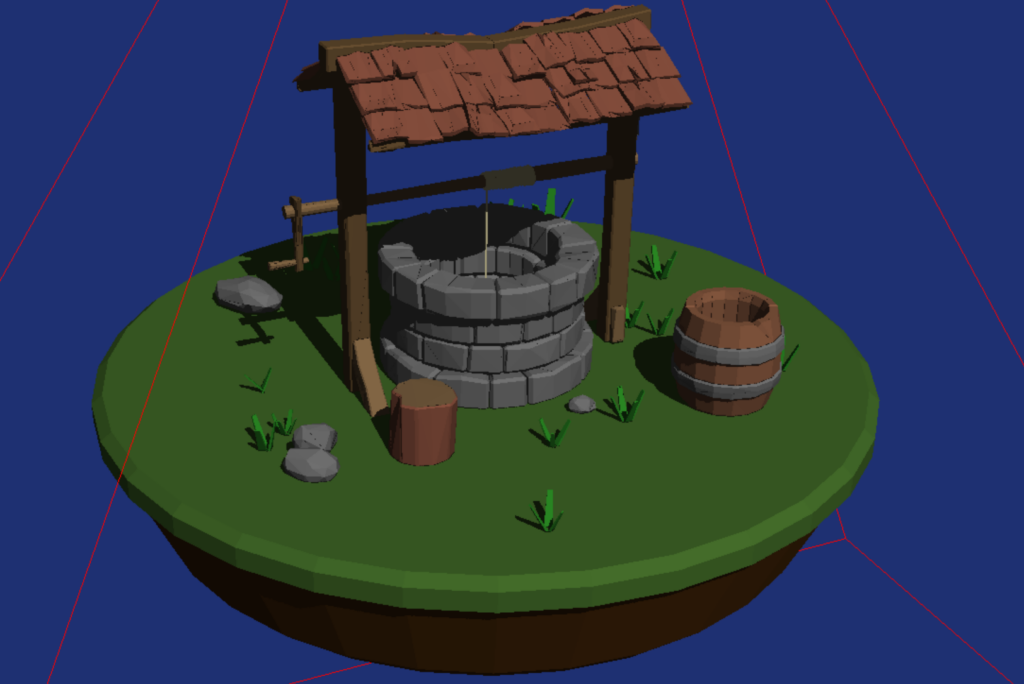
    This was supposed to be an easy release, but took much more time than I initially anticipated, but I’m very happy with the result. Now the engine is much more responsive and we don’t have those annoying behaviors with camera rotations. We can load different scens, which is nice and we can inspect them much more clearly with the new orbit camera. Finally, we’ve improved the code robustess by introducing the handlers and future profed it by using the Observer pattern when it comes to Input Handling.

    The next release is alrady jam packed, but among other things I’m planning to add ImGui support, simple texturing, simple scene graph and some very basic editor functionalities, so stay tuned!
  • SuperEZ 1.2 – DevLog

    With very little time between new job and rising two wonderful children, I found some time to start yet another iteration of my DX12 game engine from scratch. In this post I wanted to share some of my thoughts that I had during the development.

    The goal for this release was to have a rotating cube on the screen. In order to achieve that, I had to add the infrastructure for the camera and add the depth testing for my Render Targets, which was previously missing.

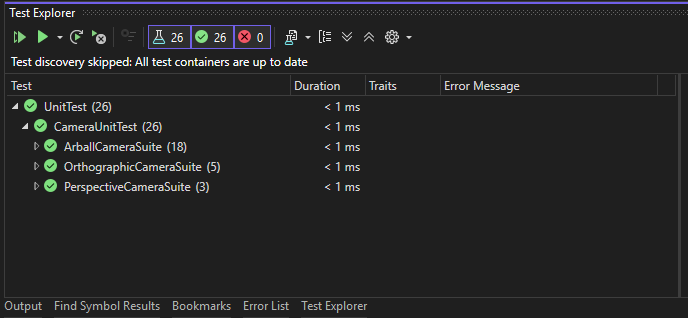
    I also wanted to start adding Unit Tests to the project, to test whatever is currently possible, which in my case would be abstract Camera classes, that doesn’t require DirectX.

    I also added a new type of Render Pass – a drawless pass – which doesn’t really required a lot of DirectX code, for instance the copy pass.

    Finally, I’ve added support for PIX markers, extracted out shader creation from Render Context and fixed all the compilation warnings, which introduces my new zero-warning policy that I will hold on to now.

    Features

    Camera

    I’ve reused the Camera infrastructure from previous iterations. Basically, we have the Camera class that have all the necessary data, and then two classes that derives from this – the Orthographic Camera and Perspective camera. Then, we have another interface, the Camera Controller, that takes a pointer to Camera as input and allows to manipulate that camera in varsious ways via common interface. Examples of Camera Controller are types like First Person Camera or Arcball Camera. Eventually, I could add controllers like dolly camera.

    Passing Camera Data to GPU

    I was thinking how to pass the camera data to the GPU, and for now I decided to go with the simple approach, which is Inline Constants. Those are the constants that are directly stored in the Root Signature. Normally, you can only have small number of those, but one matrix is good enough to place there. Here’s the code snippet of the solution.

    // TestPass.cpp
    renderContext.SetInlineConstants(commandListIndex, 16,
      perspectiveCamera->GetViewProjectionMatrixPtr());
    
    // RenderContext.cpp
    void RenderContext::SetInlineConstants(
      size_t cmdListIndex,
      UINT numOfConstants,
      void* data)
    {
      commandLists[cmdListIndex]->GetCommandList()->
        SetGraphicsRoot32BitConstants(0, numOfConstants, data, 0);
    }

    Arcball Camera Controller

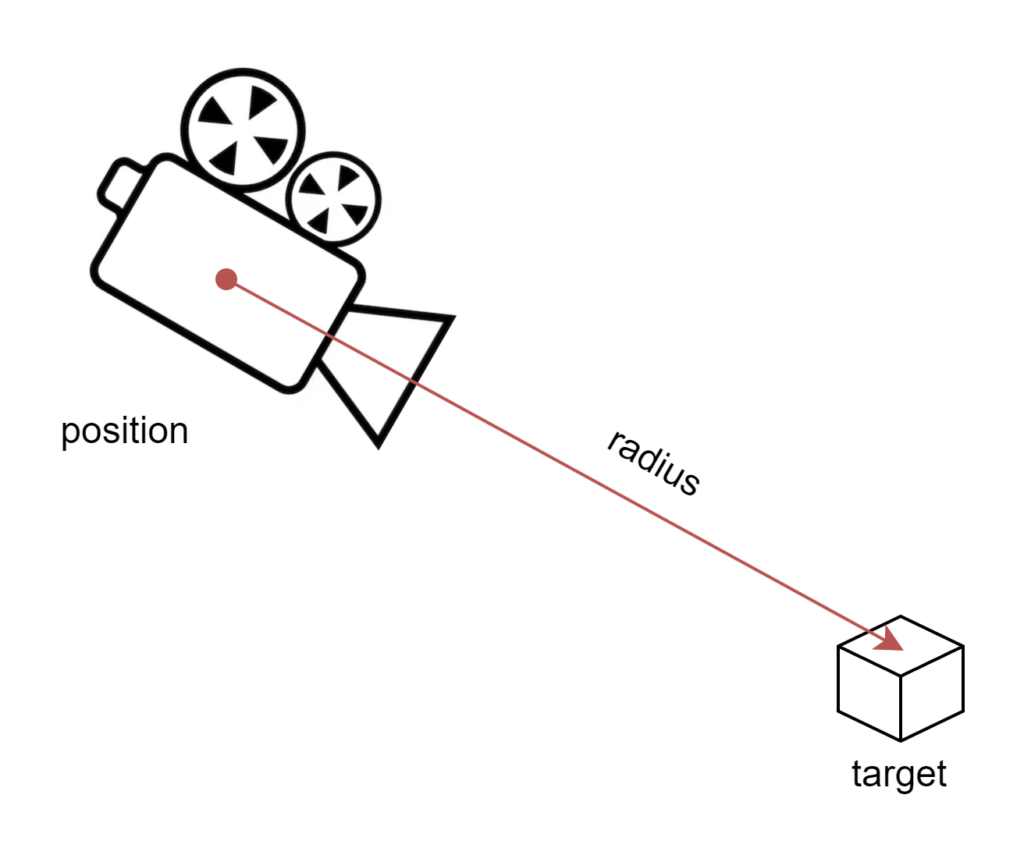
    I wanted to mention my Arcball camera issue that I had. Arcball camera is the controller that allows you to rotate your camera around a target point that doesn’t change. One of the properties of this camera is its radius, which I had a bug in. In the end, I’ve decided that I will not store the radius, but instead calculate it on demant. It was a fun, because it was a great usecase of the basic vector arithmetics. Given the target and the position, you wants to allow people to set the radius of the sphere by recalculating the position, so that the target remains the same.

    The solution was actually very simple – calculate the radius vector by substracting target from the position, normalize it and then multiply it by a scalar representing a new radius. Finally, add the result to the target and you’re done.

    void Arcball::SetRadius(float radius)
    {
    	DirectX::SimpleMath::Vector3 radiusVector
          = camera->position - target;
    	radiusVector.Normalize();
    	camera->position = target + (radiusVector * radius);
    	camera->forward = target - camera->position;
    	camera->forward.Normalize();
    }

    I’ve added a lot of unit tests to cover this scenario, and it already paid of, I was able to find several bugs in the code and in the design.

    Orthographic Camera

    One of the things I wanted to achieve this release was the ability to seemlesly switch between the orthographic and perspective camera. I wanted it to happen in a way, that the view was as similar as possible. Therefore, when I was implementing this, I naively set the width and height of the orthographic camera to be the same as the dimensions of the camera. However, once I’ve compiled the code, my cube completly dissappeared.

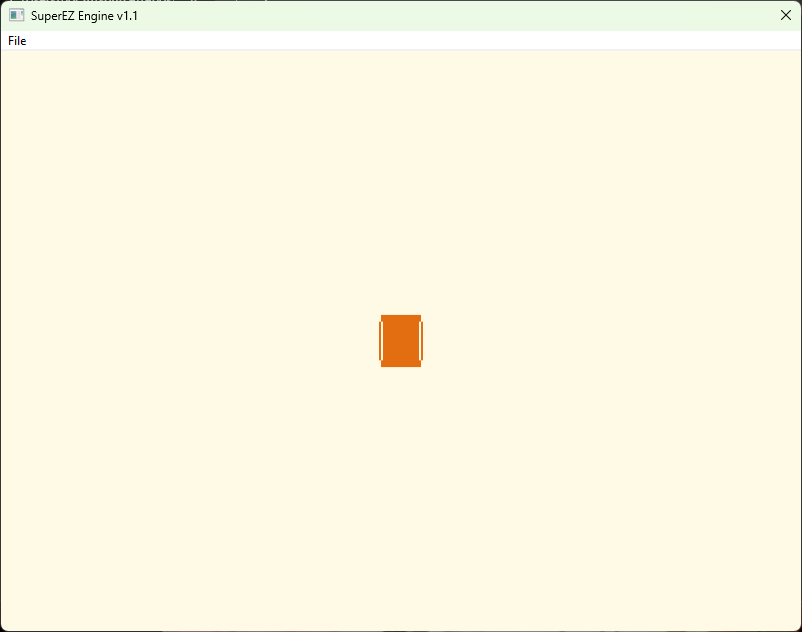
    I’ve captured the frame and started debugging right away. First I’ve confirmed that the camera data is passed to the GPU. Then I’ve checked the values that were coming out of the Vertex Shader, and they looked suspiciously small.

    This got me thinking – did I set the width and height correctly. I’ve changed those values to 80.0f and 60.0f, and this is what happened.

    After a little bit more digging, it turned out that I completly misunderstood those parameters. So, because of the nature of orthographic camera, the width and height represent the widht and height of the frustum – in world space 🙂 Since my cube is technically very small in the world space, when I set those values to 800 and 600, it simply disappeared. Knowing this I’ve changed my default values for those dimensions. I wanted them to set it to 0 by default, however, the game started crashing. Turns out those values can’t be zero, so I set them to 1.

    The only problem that left was how to match the views to the perspective camera. I don’t want to go too much into details, but here is what worked.

    float aspectRatio = 1.0f;
    float distanceToPlane = 2.0f;
    float fov = DirectX::XMConvertToRadians(36.0f);
    float height = tan(fov * 0.5f) * distanceToPlane;
    float width = height * aspectRatio;
    width *= 2.0f;
    height *= 2.0f;

    The distanceToPlane could have been set to the radius, in case of the Arcball Camera. After this, I was able to achieve my goal.

    Unit Testing

    I really wanted to start Unit Test my code whenever possible, but it was suprisingly more complicated than I initially thought. I’ve decided to go with the Google Test, so the first thing I had to do was to add it to the Premake configuration, and that was fun. The way to go with this is, you need to create two new projects within the solution – first one is the Google Test itself configured as a static library, and the second one is the actual unit tests, configured as the executable. The second of course depends on the first one. Here’s roughly how it looks like in Premake file.

    project "GoogleTest"
      kind "StaticLib"
    
    project "UnitTest"
      kind "ConsoleApp"
      links { "GoogleTest", "Engine" }

    That was just a beginning though. I saw that common thing to do is to attach Google Test project as a GitHub submodule, meaning that technically, it will not be a a part of your repository, but instead will be fetched from the Google Test repository. That means you need to change the way you clone SuperEZ, but just a little.

    Then, I started to have a whole bunch of compilation issues, which were really hard to tackle. Here are some of the most annoying ones:

    • Google Test requires C++17, means all dependant projects need to have that too
    • Google Test uses the /MT flag instead of standard /MD flag, so all the dependant projects have to do it as well
    • Google Test include directories are a little bit tricky to do, you need to include both the root directory and the include directory that lays there
    • Finally, Google Test requires to define the runtime for new configurations like Debug, PreRelease and Realease, which means you have to add those three filters to all dependant projects

    Unfortunatelly, all this made my Premake file look really messy, I need to find a way to address it. Once that was out of the way, I added a bunch of tests and were good to go.

    Quick Visual Studio 2022 tip – if you want to run all the test, you need to press the key chord combnation of CTRL+R, followed by V, it is pretty handy.

    Depth Testing

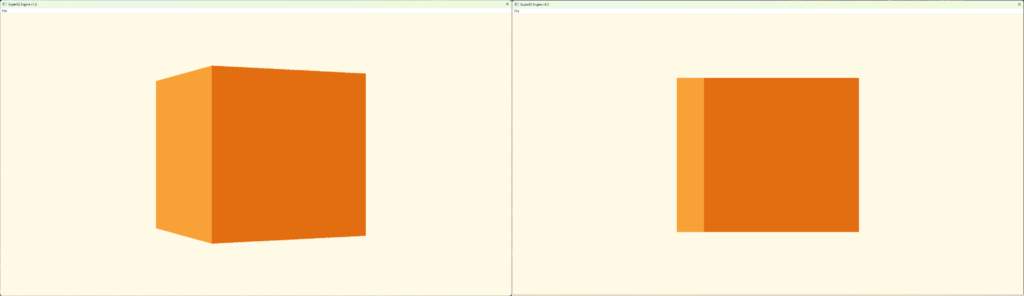
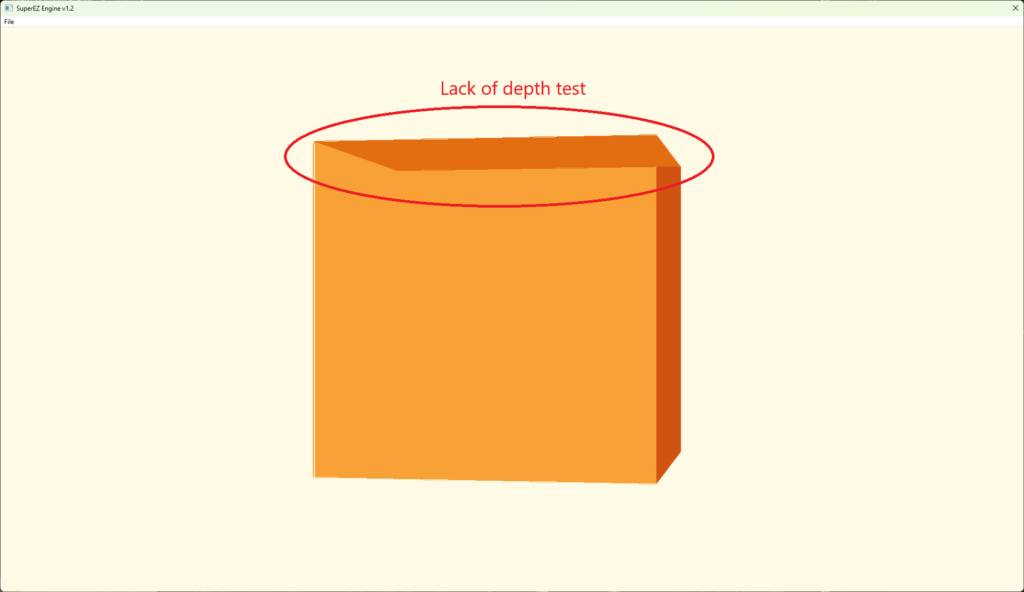
    One of the first things I’ve noticed when I started adding actual 3D geometry to the project was that I was missing the Depth Testing, which made my cube look like this.

    In order to get this fixed, I had to do couple of things and think about the design a little bit. First of all, I need to create an actual resource that will hold our depth buffer. Remember to set the flag D3D12_RESOURCE_FLAG_ALLOW_DEPTH_STENCIL for that resource and to set it to D3D12_RESOURCE_STATE_DEPTH_WRITE initial state. I’ve used the format DXGI_FORMAT_D32_FLOAT, which is the typical depth buffer format for simple engines.

    Then, we have to create what in DX11 was called the depth buffer view. To do that, we need to allocate one descriptor from the Depth-Stencil Descriptor heap, and then provide it (along with the created depth resource) to the function CreateDepthStencilView called on the DirectX 12 Device.

    Finally, in order to bind that depth buffer, we need to retrieve both the Depth Buffer descriptor from the Depth-Stencil Descriptor heap and the associated Render Target from the Render Target Descriptor Heap, and provide this to a call to OMSetRenderTargets on the Command List associated with given Render Pass. And that’s about that, after doing all this, you should be good.

    Drawless Render Pass

    With the introduction of the new type of resource to the Render Pass, I started to have a little bit of the problem. My Blit pass does not really draw anything to the screen, and therefore doesn’t really need none of the typical resources, like Render Target or Depth Test. I decided to introduce a new type of pass – the Drawless Render Pass – so that we won’t bind and create any unncecessary resources. First I considered adding a new type that derives from Render Pass, but at this point I decided this is really unnecesary and will increace the code complexity.

    Eventually, I decided to add a new property to the Render Pass which indicates what type of pass it is. Currently it only have two values, Default and Drawless. Then, in the automatic prepare, I simply check if we have default pass, and only then bind necessary resources.

    void RenderPass::AutomaticPrepare()
    {
      if (GetType() == Type::Default)
      {
        rootSignatureIndex = renderContext.CreateRootSignature(&deviceContext);
        shaderIndex = renderContext.CreateShaders(shaderSourceFileName);
        pipelineStateIndex = renderContext.CreatePipelineState(&deviceContext,
          rootSignatureIndex, shaderIndex);
        viewportAndScissorsIndex = renderContext.CreateViewportAndScissorRect(
          &deviceContext);
      }
    
      commandListIndex = renderContext.CreateCommandList();
    }

    This is not ideal, since the actual resouce creation is currently in the hands of each individual pass, but it will have to do for now.

    PIX Markers

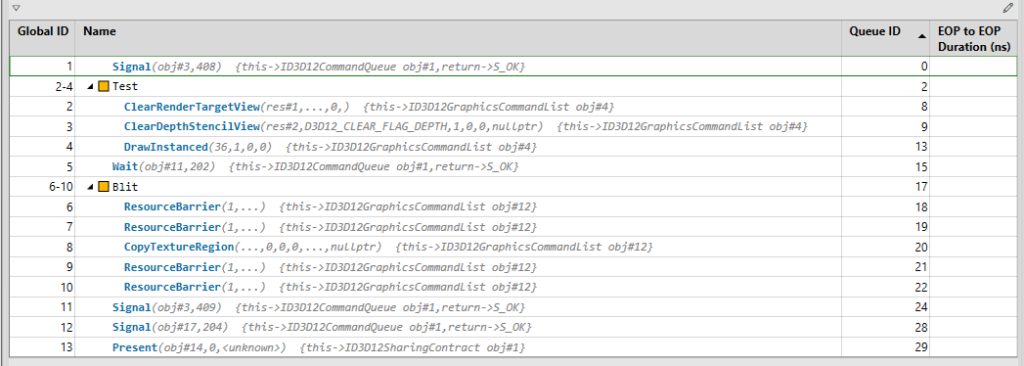
    This is just a must have. You can put those markers in the code and they will mark some important points in your code and will end up in the frame capturing tools like PIX or RenderDoc. The integration of the code is easy, there are just some tricky parts you need to address. In my case, I’ve decided to mark all of my Render Passes, so they are clearly visible from the capture.

    Half of the integration effort is actually done in Premake. You need to make the WinPixEventRuntime.dll part of your solution. First of all, we need to add proper paths for include and then library directories and we need to add the dependency to the lib file.

    project "Engine"
      includedirs { "source/externals/PixEvents/include" }
      libdirs { "source/externals/PixEvents/lib" }
      links { "WinPixEventRuntime.lib" }

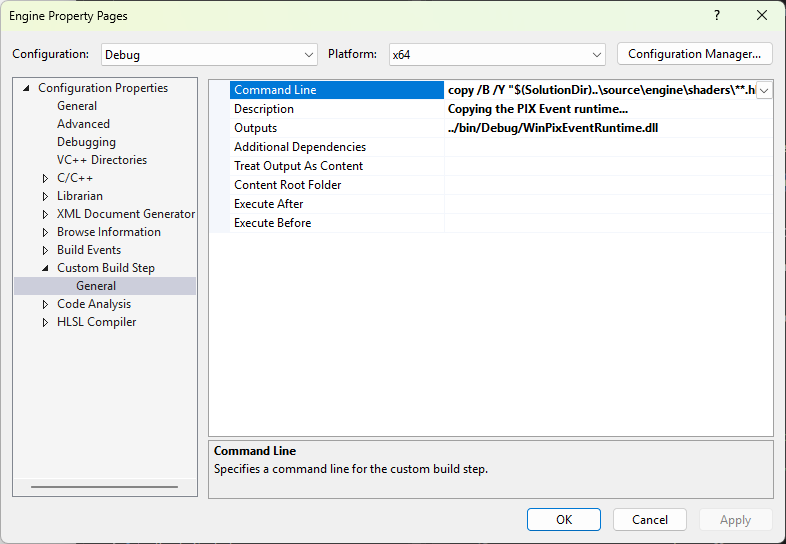
    Now we should be able to compile the code, but it would crash in runtime, that is because we need to copy over the PIX DLL to the target directory. Now what are you about to learn is a little bit tricky, but also very useful. We will use a Custom Build Step in order to copy that DLL. First, let’s look at the final effect in the Visual Studio project properties.

    We have three elements there – the Command Line is the thing that we want to happen, which in this case is to copy the WinPixEventRuntime.dll to the target directory (for the Debug configuration). The Description is the text that will show up in the Output window during the build process. This is important to set, bacuse this will indicate if that action was executed or not. Finally, the most tricky thing – the Outputs. It allows to specify the output file, which will be used to verify if there is a need to trigger Custom Build step, generally there will be a check if the output file is fresh enough or if it exists, if not, then the step will be triggered. For instance, if you would want this step to happen all the time, just put a non-existing file there, and it will be executed every time.

    Here’s how all this looks from the Premake perspective (sorry for the line breaking, but it would make it hard to read otherwise).

    project "Engine"
      filter "configurations:Debug"
        buildcommands
        {      
          "{COPYFILE} 
            %[%{!wks.location}../source/externals/PixEvents/bin/**.dll]
            %[%{!cfg.targetdir}]"
        }
        buildoutputs
        {
          %{!cfg.targetdir}/WinPixEventRuntime.dll"
        }
        buildmessage("Copying the PIX Event runtime...")

    Now the last thing to do before making it all work is a little but tricky (especially if you didn’t read the PIX Event documentation 🙂 ). You need to make sure to set this USE_PIX define, otherwise, all PIX function calls will defalut to nothing.

    #ifdef DEBUG
    #define USE_PIX
    #endif
    #include "pix3.h"

    And this is it! Now you can start setting your markers all over the place, like this.

    PIXBeginEvent(
      renderContext.GetCommandList(commandListIndex)->GetCommandList(), 0, name);
    // Render Pass Command List recording phase
    PIXEndEvent(
      renderContext.GetCommandList(commandListIndex)->GetCommandList());

    And this is how the end result looks like in PIX.

    Warnings

    Last thing before the release, I wanted to set the new policy – the Zero Warnings policy, but in order to do so, I had to get rid of all the warnings I had already, and let me tell you, there were a lot of them 🙂 That’s why I’ll just cover one here, and that one would be the C4267 – a conversion from size_t to other type can lead to possible loss of data. In my case, this was happening mostly with the conversion to unsigned int. That was suprising, because I though that size_t actually is the unsigned int. I had to get to the bottom of this.

    Truns out that there is a subtle difference between the two. To quote a very good article on the subject (https://pvs-studio.com/en/blog/posts/cpp/a0050/):

    size_t is a special unsigned integer type defined in standard libraries of C and C++. It is the type of the result returned by sizeof and alignof operators.

    The maximum allowed value of the size_t type is the SIZE_MAX constant.

    size_t can store the maximum size of a theoretically possible array or object. In other words, the number of bits in size_t is equal to the number of bits required to store the maximum address in the machine’s memory.

    There you go, it is a special unsigned int that is guaranteed by the standard to be big enough to allow to store maximum theorethical size of the container. So, for instance, the size of unsigned int is always 32-bits, but the the size of size_t could be 64-bit on the 64-bit platforms, which is a platform of choice for my engine. So theoretically, the size of std::vector could be too big to fit into unsigned int index, effectively causing integer overflow.

    unsigned int RenderContext::CreateRenderTarget()
    {
      // ..
      return renderTargets.size() - 1;
    }

    The solution was to change all of my variables that represented indices from UINT to size_t. It wasn’t as easy as it sounded, but was able to manage that. I did have one issue that I couldn’t really fix.

    rtvHandle.Offset(static_cast<INT>(index), descriptorSize);

    So my index is size_t, but the Offset function requires an INT, which is weird because why would you allow negative indices? Anyways, this was the only place where I couldn’t change the fuction type, so I decided to go with the static_cast, which is not ideal, because it doesn’t protect me from the integer overflow, but we’ll leave it for now.

    Summary

    And that’s it folks – we have some 3D object on the screen, and the actual camera entity rotates around it. We can easily switch between the Orthographic and Perspective camera, and if anything goes wrong – we can grab a PIX frame, with all of those nice PIX markers, and start debugging right away. One thing is sure though – this bug wouldn’t be caused by any of the warning, since we got rid of them!

    I’m looking forward to the 1.3 release, because we will have something better to look at. The aim for that release would be to add possibility to load geometry from file, so we would get rid of this cube finally and replace it with some nice mesh. The second thing would be to add the input handling, so that we can control the camera better and do some debugging things, like switching cameras on the key press. Unfortunately, with the very limitted time I have, can’t promiss when those things are going to come.

  • Engine Update #1 – Debug Camera

    I decided to start this series to give you guys some updates about what is going on with the engine and what significant feature I have been working on lately. I think this is important to see how work gets done with game engine development, so maybe others will find some inspiration and will start working on their own, which is an amazing developer’s journey.

    Motivation

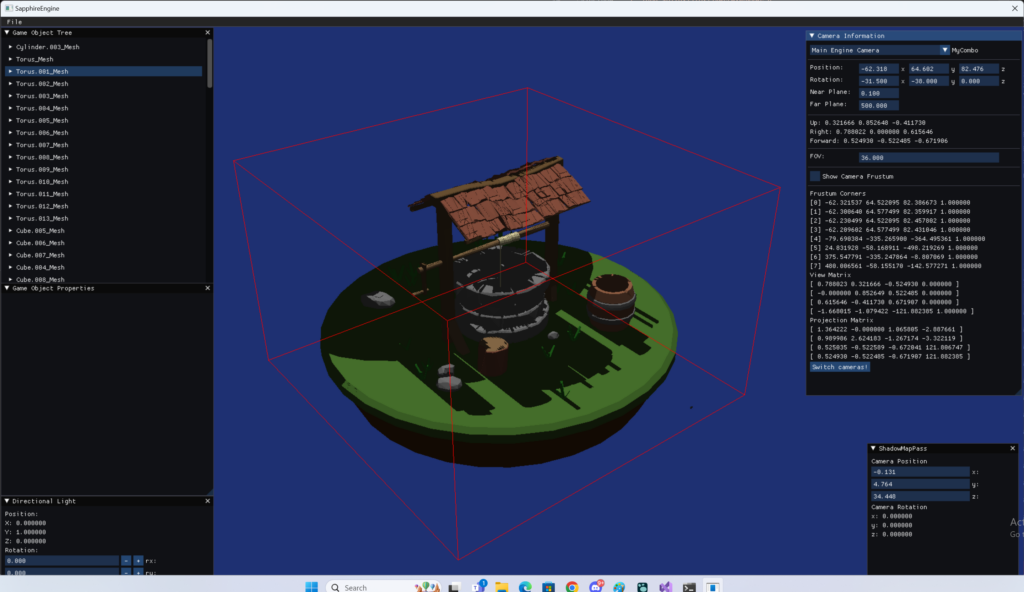
    The main motivation for developing this feature is that, in order to develop tightly fit camera frustums for the shadows, and eventually Cascade Shadow Maps, I need to be able to visually see the frustums and how they interact with each other. Additionally, visualizing frustums and getting access to camera’s inner data would allow me to understand cameras and geometric transformations better.

    Description

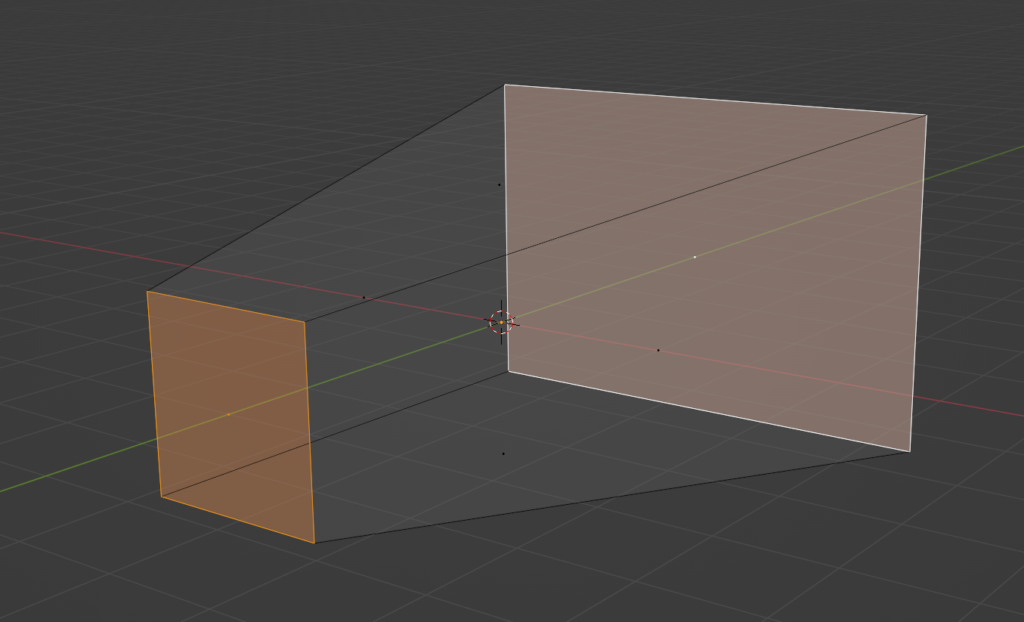
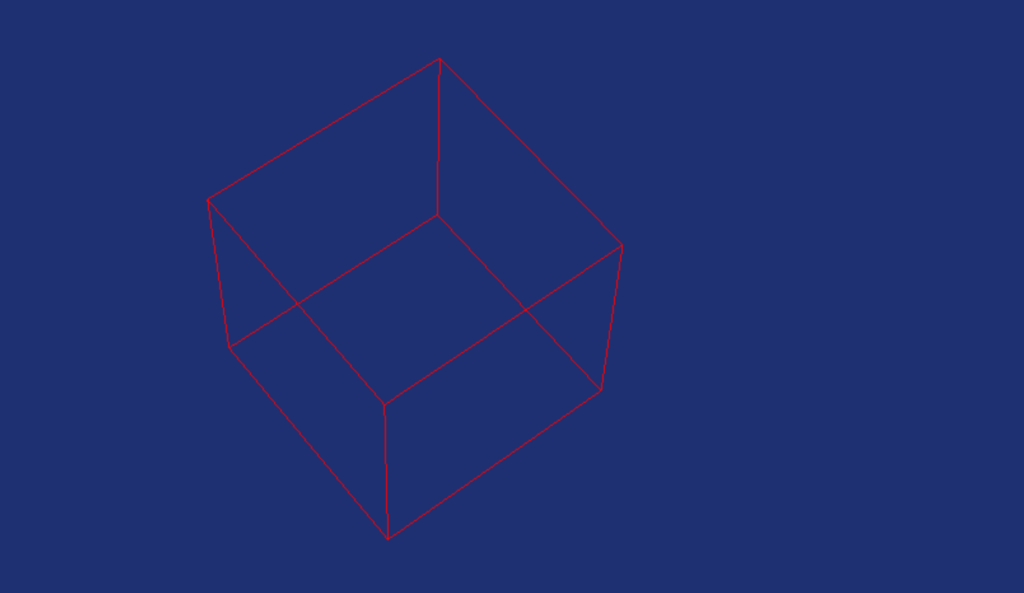
    I want to be able to see the camera frustum within the world. I started by quickly drawing what I would like to see in Blender, just to have my eyes on the prize. Basically, I want to see the wireframe of the frustum, and I want to clearly see the near and far plane. I don’t necessarily want to see other things, like semi-transparent walls or wall selection, just the wireframe.

    At the beginning, I also wanted this to look very good, so I decided to give Geometry Shader a try and basically try to draw those lines as quads, so they can have a proper width and potentially proper anti-aliasing.

    Render Interface

    One of the problems I had was that all of the cameras were scattered all over the code. You could basically create them anywhere in the code, starting from the Game project, ending on the ShadowMapPass. I also wanted to have the ability to add debug cameras, like orthographic front or side cameras.

    In order to be able to shaw debug information for all othem and potentially be able to show frustums for any of them, I had to have it centralized. I decided to add a static array of Camera pointers in the RenderInterface class. This is the class which is usually available everywhere, starting from the Engine class, ending in the Renderer and each RenderPass has a pointer to it.

    I decided to have a static array, meaning that its size has to be known at the compile time. The order of all of those pointers is known and described in the enum.

    enum CameraNames
    {
      MainCamera,
      DebugCamera,
      ShadowMapCamera,
      FrontCamera,
      CameraNamesSize
    };
    // ...
    class RenderInterface
    {
      // ...
      Camera* cameras[CameraNames::CameraNamesSize];
      bool showCameraFrustum[CameraNames::CameraNamesSize];
      // ...
    }

    Debug Render Pass

    Now that I have easy access to all the cameras, I was ready to add a new render pass. I decided that the next step was to draw a wireframe box, but not using the standard route – I want to render it using wireframe. And for that, I needed a new Debug Render Pass. That pass would take all the cameras from Render Interface, and will draw a wireframe of its frustum in the world space (if requested by the user).

    Wireframe Rendering

    The first thing I wanted to do was to actually draw a cube. However, I didn’t want to go the usual route, where I create a box in Blender, and then load it from file. Instead, I created a separate class that will be reponsible for generating geometry on the spot. I would start with the box, since this is really easy, followed by maybe a frustum, and then more complex stuff, like capsules or spheres.

    Geometry Shader

    I though it would be a good idea to give Geometry Shaders a try, since I have never actually used them before. And given that Mesh Shaders are getting more and more attention, it would be good for me to at least be familiar with its poor predecessor. Couple of things you need to know about Geometry Shaders:

    • They work on entire primitives instead of single vertex, like Vertex Shaders
    • Has the ability to emit or discard vertices
    • It has the ability to change primitive topologies (lines on input, triangles on output)

    This sounds like a very good case for those kind of shaders, we could provide lines that represent the frustum, and then create a quad. This should allow us to define the thickness of the line and would potentially help us deal with the aliasing. There are also challenges though, we would have to make sure that those quads always face the camera and we would have to deal with joints somehow, so the line looks like a single one. Writing Geometry Shaders also sound relatively easy, at least when it comest to the easy ones.

    struct GSInput
    {
      float4 position : POSITION;
    };
    
    struct GSOutput
    {
      float4 position : SV_POSITION;
    };
    
    [maxvertexcount(2)]
    void main(line GSInput input[2], inout LineStream<GSOutput> outStream)
    {
      GSOutput output;
    	
      output.position = input[0].position;
      outStream.Append(output);
      output.position = input[1].position;
      outStream.Append(output);
    }

    This is a simple bypass shader, meaning this simple copies the inputs you provide. You can tell by looking at its singature – you’ve got line at the input and LineStream at the output. Then, although you can freely append and discard vertices, you have to declare the maximum number of vertices that your geometry shader will emit.

    This particual shader does actually nothing, it is a simple bypass – it takes whatever pair of vertices that it on the input, and it simply appends it at the end of the line stream. To bo honest, I never really did more then this. In the end it turned out that the simple wireframe was enough for me, so more complex geometry shaders will have to wait for better times.

    Frustum Corners

    One of the most challenging things I had to deal with was to calculate camera frustum corners in the world space. I didn’t really know how to do it, there were several things I had to consider in the solution. It would have to work for both orthographic and perspective cameras, it would have to be in the world space. After researching this subject a little, it turns out that there are two ways to do this.

    The first one is pretty straight forward, if you know the positions of the planes, you could manually calculate the frustum corners, but I couldn’t really figure this way out. The second solution looked a little bit more generic and therefore better – calculating the corners from the view-projection matrix of the camera.

    When you create the camera transformation, you need to prepare two matrices – a view matrix that basically has the rotation and position encoded in it, and a projection matrix that contains either orthographic or perspective projection. You multiply those two together, and you apply this transormation to all vertices, effectively putting them in the so-called NDC space, from which you simply discard the depth and just project the x and y values to the actual pixels.

    The trick to retrieve frustum corners from view-projection matrix, is to prepare a box that would represent the NDC space, and then multiply all those 8 vertices by the inverse of the view-projection matrix of the camera. There is a little caviat though, it is not entirely the same for the orthographic and perspective projection, there is a little difference – in the perspective case, once you multiply, you have to divide the result by the w-value. Here’s the code for the perspective camera.

    void Sapphire::PerspectiveCamera::CalculateFrustumCorners()
    {
      auto tempViewProj = view * projection;
      for (int i = 0; i < 8; i++)
      {
        frustumCorners[i] = DirectX::XMVector4Transform(
          frustumCornersNDC[i], tempViewProj.Invert());
        // The line below only applies to the perspective camera
        // You should delete it for orthographic camera
        frustumCorners[i] /= frustumCorners[i].w;
      }
    }

    Here’s how the frustum corners NDC look like.

    const DirectX::SimpleMath::Vector4 frustumCornersNDC[8] = {
      DirectX::SimpleMath::Vector4(-1.0f, -1.0f, 0.0f, 1.0f),
      DirectX::SimpleMath::Vector4(-1.0f, 1.0f, 0.0f, 1.0f),
      DirectX::SimpleMath::Vector4(1.0f, -1.0f, 0.0f, 1.0f),
      DirectX::SimpleMath::Vector4(1.0f, 1.0f, 0.0f, 1.0f),
      DirectX::SimpleMath::Vector4(-1.0f, -1.0f, 1.0f, 1.0f),
      DirectX::SimpleMath::Vector4(-1.0f, 1.0f, 1.0f, 1.0f),
      DirectX::SimpleMath::Vector4(1.0f, -1.0f, 1.0f, 1.0f),
      DirectX::SimpleMath::Vector4(1.0f, 1.0f, 1.0f, 1.0f),
    };

    This is obviously for DirectX, for OpenGL it will look different, because of the different coordinate system. I also wonder if the w coordinate is really necessary, maybe I should be able to get by without it, maybe I’ll check that one day.

    Depth Buffer

    The last thing I had to deal with was that initially, I though that wireframe rendering can’t use the depth buffer.

    Fortunately, I was wrong. It turns out that wireframe can use the depth buffer, just as any other kind of rendering. I provided the depth buffer from the Forward pass, enabled depth checking, and that was enough to get this actually working.

    Summary

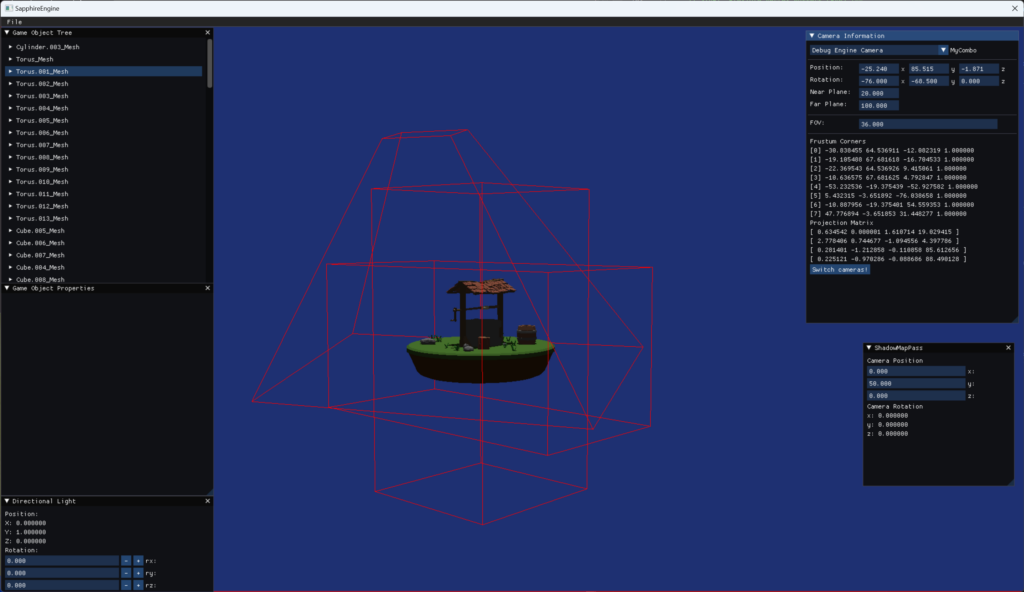
    Eventually, I was able to get this whole thing working. Now I’m able to see debug information for any camera, and on top of that, I can draw frustum of any of the pre-defined cameras.

    And here’s how it looks like in action.

    In the end I decided not to follow through with geometry shaders, it wasn’t really needed and casual wireframe rendering was enough. I did leave though the implementation to support geometry shaders, so maybe I will pick it up in the future.

    All this effort was done so that I can first better understand the geometry transformations and the concept of the camera in drendering, and two – and more inportantly – to help debug and visualise the next concept I want to work on, which is tightly fitting the light camera frustum in the Shadow Map pass to the view camera frustum.

  • First picture of the moon

    Introduction

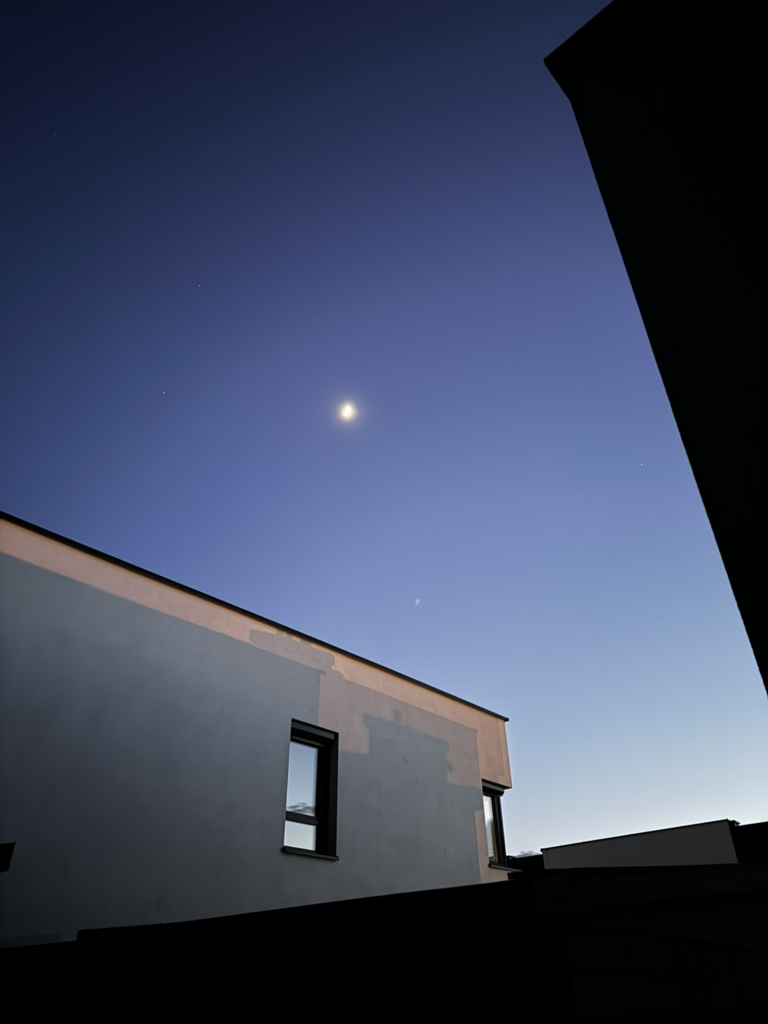
    Today I decided to take my telescope, the Opticon Pulsar 76F700, for a spin. This was the second or third time I took it out, mainly because I bought it during the winter period, and I couldn’t find good visibility and decent weather; usually, it was very cloudy and cold. This time, though, it was nice outside, warm enough not to bring my jacket, and there were almost zero clouds in the sky. This is what the sky looked like from my back garden. That bright circle in the middle is the Moon – my main target for that night.

    First of all, my focus scope was not perfectly aligned, which is a bit of a bummer, since I couldn’d simply point the crosshair at the moon, I had to stil align the telescope once I started observations, but it wasn’t too hard fortunately. I was ready to start the observations.

    The Moon

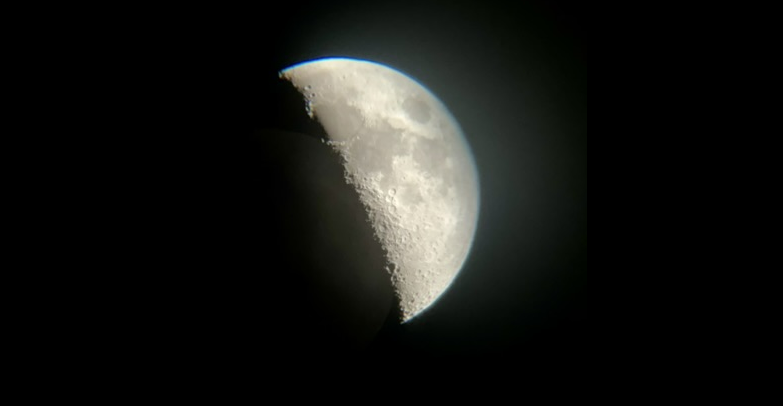
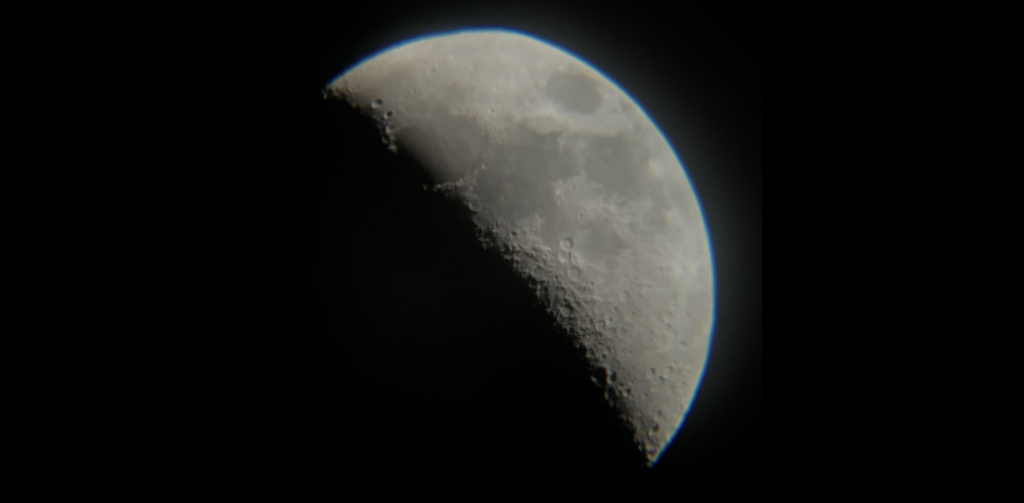
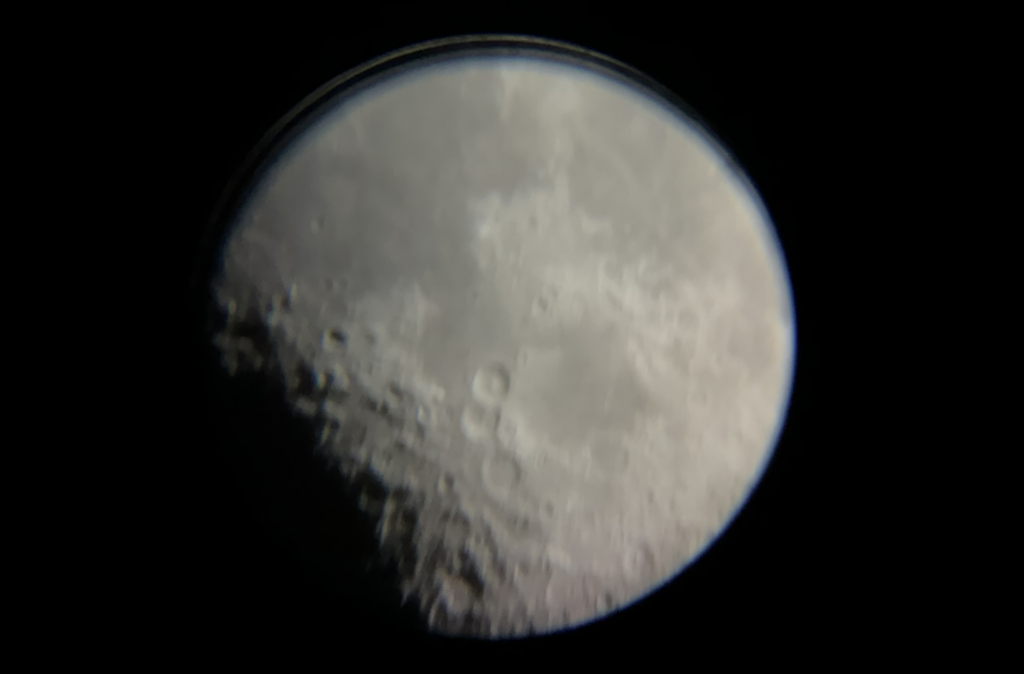
    First I started with the ocular Huygens 20mm (H20mm), which was great – the entire Moon fit in the view, I could easily find focus and I was able to see a lot of stunning details of the only one natural Earth satellite.

    After initially observing through a lower magnification eyepiece, I switched to the Huygens 12.5mm (H12.5mm) which provided an even better viewing experience. The use of this eyepiece still allowed for easy focusing, but with the added benefit of increased magnification. This slight boost made it possible to discern even more intricate details, enhancing my overall observation quality.

    Finally, I tried the SR4mm ocular – unfortunately, this one wasn’t working great. It was very hard to point the telescope in the right direction, I had to do it manually look for the target and the finder scope wasn’t helpful at all. Then I couldn’t find the focus, it was very narrow, plus turning the knob was actually changing my view. I was also under the impression that the moon was moving, so I had to adjust pretty quickly.

    The final try was to use the Barlow, but I wasn’t stunned; it was very hard to find focus, and even after I found it, the image was blurry. I think this might be due to the low quality of the piece itself; maybe I’ll do a little research on which Barlow is actually good and how to use it.

    The Big Dipper and the Leo Constellation

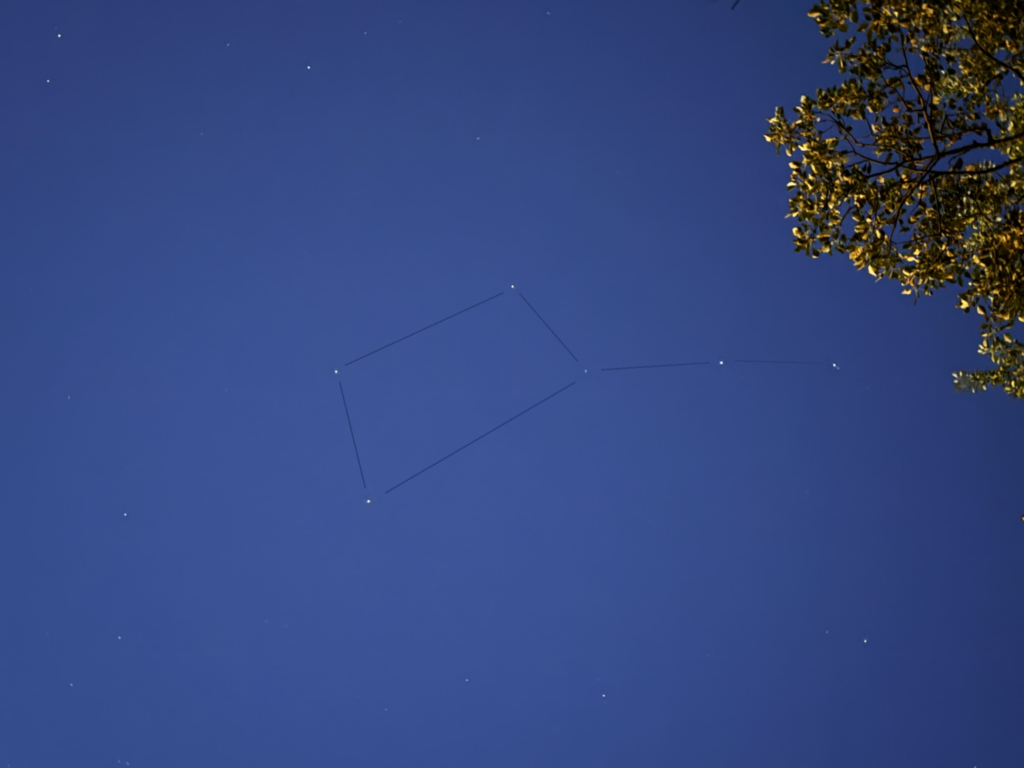
    There was also something that I’ve noticed, and in fact, for the first time ever, it was visible with the naked eye. It was really amazing to recognize the pattern and actually be able to name it and really see it from your back garden. The first one was the Big Dipper. I think I’m missing one star; it was covered by the tree, and I wasn’t able to identify this while I was taking the picture.

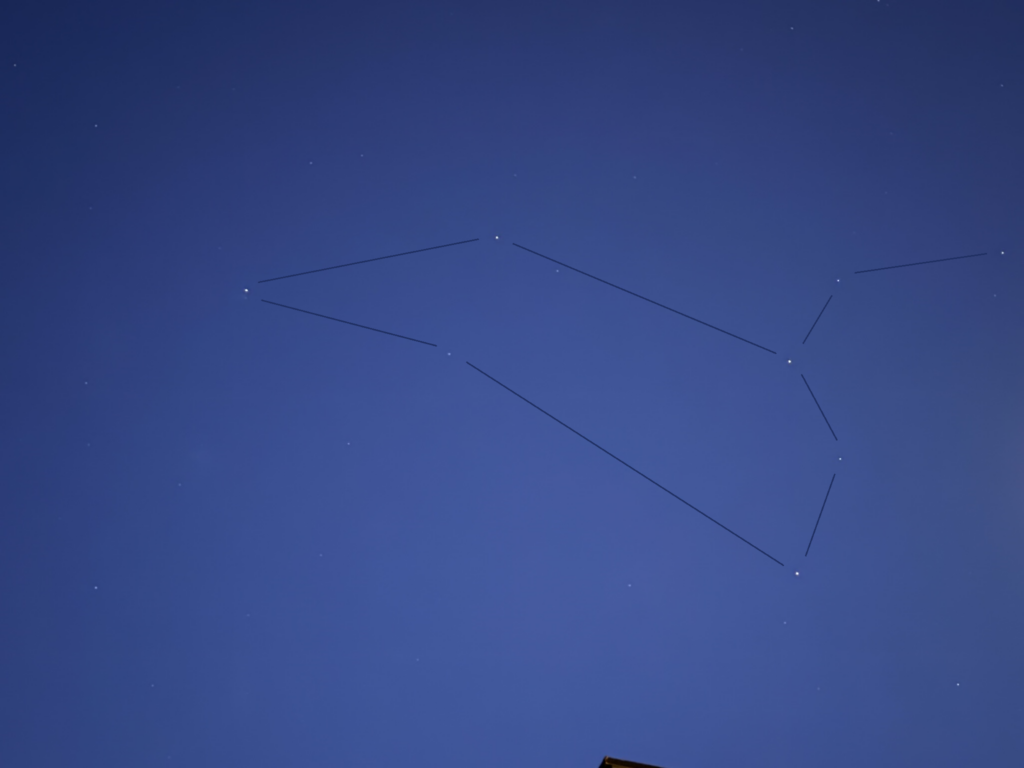
    The second was the Leo constellation. This one I found by using the application, but then once I saw this, I was able to notice it right away. Similar to before, I’m missing this one star in this constellation, simply because I wasn’t aware of this.

    Summary

    Overall, one of the things that was very annoying was the stability of the telescope; every little movement affected the view, even if I tried to be gentle, I still sometimes lost the view. Secondly, it was the blurriness of the view; perhaps the temperature was dropping, and that was the reason. Third was the SR4mm; I wasn’t able to make that work. Fourth, the mismatch between the actual view and the finder scope. And finally – taking pictures with my iPhone. It was tricky, very hard. The images looked great on the phone, but (as you saw) are not looking decent on the iPhone.

    However, being able to actually look at the moon with your very own eyes, was extremely rewarding experience. Trust me, the actual picture that you see is so much better than any picture you see over the internet. Truly stunning, it really allows you to feel that you are a part of something bigger.

    Next, I’ll try to take better pictures. Maybe I’ll make use of my old DSLR camera. Eventually, I need to find other targets that my telescope is recommended for too – Jupiter with moons, star constellations, the Moon, Mars, and Venus.

  • Converting integers to C-style strings

    Introduction

    Recently I was working on a PPM encoder. The encoder was supposed to take an image in a raw format, which is an array of unsigned chars, where each byte had a numerical vale in range from 0 to 255, and encode it in the PPM format, which is basically a very simple text file. I needed a function that would translate a number to a C-style null-terminated string.

    // Input
    const UINT number = 255;
    // Output
    const char array[4] = { '2', '5', '5', '\0' };

    When I was researching this problem it turned out that there are several solution available to us:

    • the snprintf function
    • the itoa function
    • the stringstream
    • the std::to_string
    • the std::to_chars

    Let’s review all of them, and at the end I’ll explain which solution I decided to implement.

    The snprintf function

    The first potential solution was to use the sprintf function. The basic sprintf function takes a variable number of arguments and a formatting string that describes how to put those arguments together, and it produces the composed C-style string. This is very similar to the printf function, but instead of printing, the sprintf function puts the output string to a buffer, which is an array of chars. A pointer to that buffer is the first argument to this function, so you need to manage that memory yourself and you have to make sure that it is big enough to store the output string, which could be tricky.

    Now, there is a better and safer function we could use here, which is snprintf. It is very similar to the sprintf, but it takes one additonal argument which represents the maximum number of characters to be written. You can simply provide the size of the buffer that will store your output, and therefore, the function itself can protect against buffer overflow. It is worth noting that this function appends the \0 sign at the end.

    Once the function is done, it returns the number of characters written to the buffer, not including the \0 character at the end. However, if anything was wrong during the encoding, the return value will be negative. So the quick way to check if the function worked correctly, is to check if the number of chars written is both bigger than zero, and smaller than the output buffer size.

    Here I create a local STL array of chars, with arbitrary number of elements. In my case, the number of characters I need to be able to store has to be enough to store a maximum value of unsigned integer. Then, I simply call the the snprintf function, where I want it to output an integer (so “%d” formatting string) and I give it the number I want to translate. Lastly, I check if the function worked correctly, and eventually I use all the information I gathered to append my new string to the output buffer using my custom function.

    The itoa function

    The second option was to use itoa function. Note that we’re talking here about the ITOA function, not IOTA, which has a very similar name, but does something completly different.

    So the itoa function does exactly what we want, which is it converts an integer value to a null-terminated string using the specified base and stores the result in the array given by str parameter. The function also returns a pointer to that char buffer, which is the same as the first parameter. The buffer needs to be big enough to be able to store the output array of characters, which is a tricky part, since we don’t know the exact number of digits in a number.

    There are a couple of problems here. First, we don’t know if the string was encoded correctly, there is no error reporting. Second, we don’t know how many character has been written, and therefore we don’t know how many characters we need to append to our buffer, and we need to find it out some other way. Third, this function doesn’t provide the protection against the buffer overflow. And lastly, which I think is the most important, this function is not defined in ANSI-C and is not part of C++, however, it is supported by some compilers. So thins might reduce the portability of the code.

    Using stringstream

    The third was to use string and stringstream, but it seems like using a big, big axe to do such a simple task.

    This solution is convinient, but it does seem like a big tool for such a small job. Additionally, we need a temporary string object from the standard library.

    The std::to_string function

    It is fairly easy and convinient to use the std::to_string function. We can basically get everything that we want in a single line.

    Very clean, very convinient, however, this is not even a template function, and it only works for some subset of types, like integer or floats. It does the job, but for instance it won’t work for string literals. The memory is managed by the function, which for some might be problematic, but for sure it is convinient.

    The std::to_chars function

    Finally, this is one of the newer function and it is very interesting and appealing. This function is all about performance. The function is available in the <charconv> library. The function converts an integer or floating-point value to a sequence of char. The conversion functions don’t allocate memory. You own the output buffer in all cases. Note that for floating point numbers, the conversion functions aren’t locale aware, that means they always print and parse decimal points as '.', and never as ',' for locales that use commas. You need to provide a range in the char array, where the function write down the result of its work. The function returns to_chars_result which is very simple and has all the information we need. We have to reduce the range by one, because eventually we want to append the null-terminaned character at the end.

    The return structure has only two fields. The ec field contains an error, if there is any. If the error occur, you can still try to recover from it. The second field ptr, and if the function succeded, it is the one-past-the-end pointer of the written characters. This is very convinent for our case, because we can use that pointer to add a ‘\0’ at the very and of it.

    Conclusion

    I created a little table to summarize all the properties of each solution, to make sure I’ll pick up the right one for my case. Eventually, I decided to go with this solution.

    Basically, I have two overriden functions, one takes an unsigned integer, transtlate it to array of chars using the modern and fast to_chars function and appends the null tereminated character at the end. The second function takes a pointer to a char array, which represents the null-terminated C-style string, calculates how many characters we need to copy, and then copy it. What is also worth noting, at the very beginning of my functions, as soon as I know roughly how many characters I would need, I reserve that many bytes so I can avoid constant memory allocations during realtime.

  • A Byte of Math #1

    Everyone interested in computer graphics knows that geometry transformation is basically a set of vector multiplications by some matrix, but have you ever wondered what this matrix actually contains? Have you ever try to visually interpret it? This episode will try to put some light on this subject.

    (more…)